
Is Debian 13 Server on VirtualBox the EASIEST Way to Get Started2 min read
In this tutorial is how to install Debain 13 on virtualbox windows 10. At first download Debian 13 iso from office repo then it attach to your virtualbox vm.
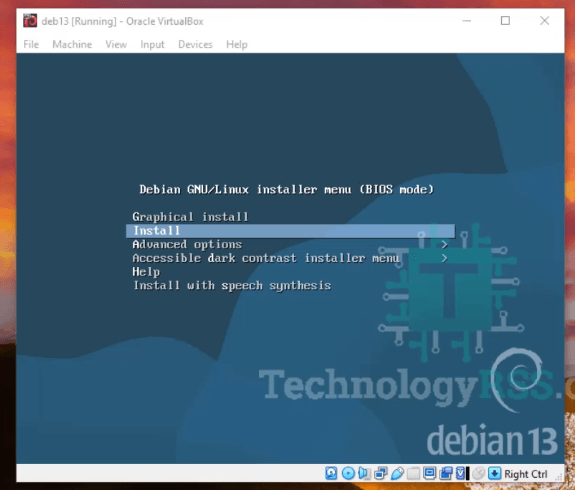
Then select Install option and hit Enter.
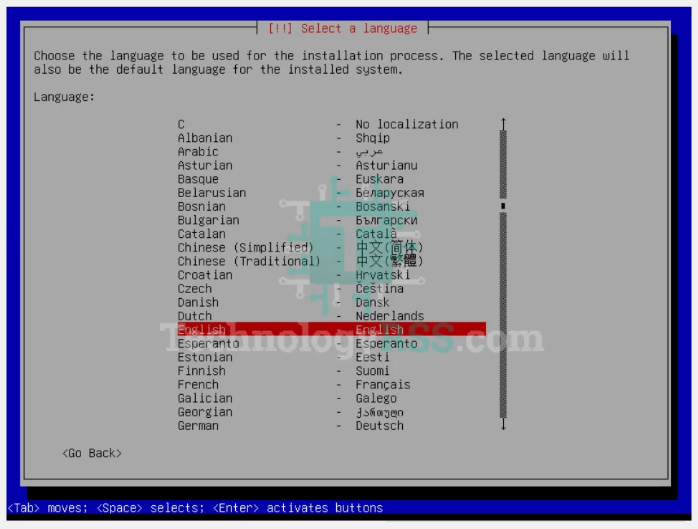
Select English language then hit Enter.
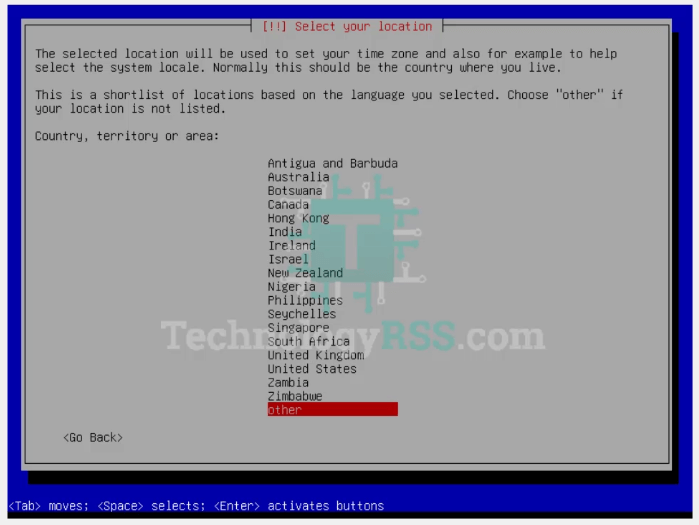
Select as your country and then Hit Enter. then configure keyboard then press enter.
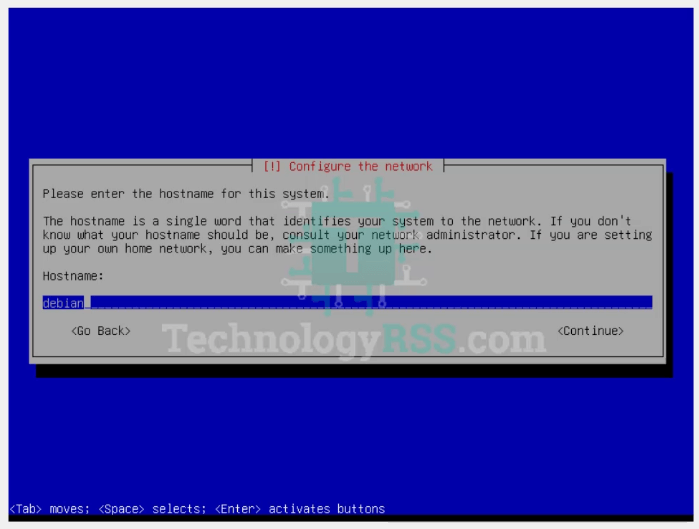
Setup root password.
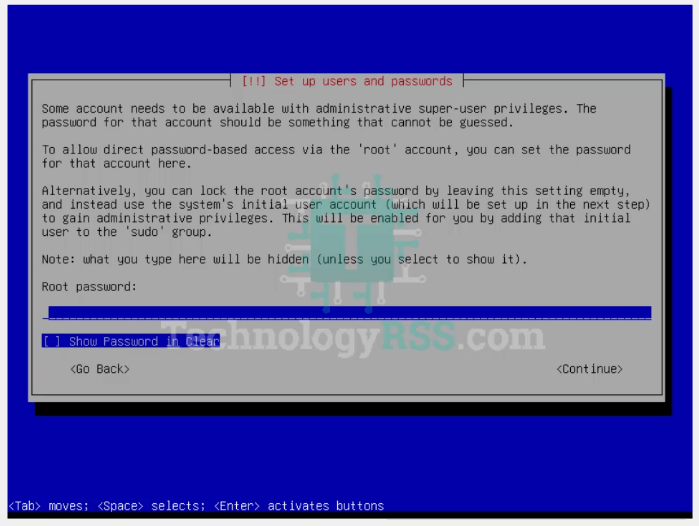
Setup user account and setup password.
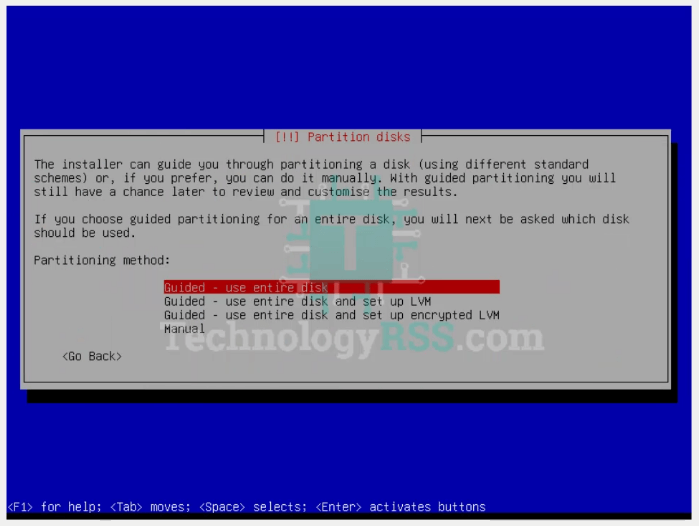
Use partition scheme as you want or you can use default partition.
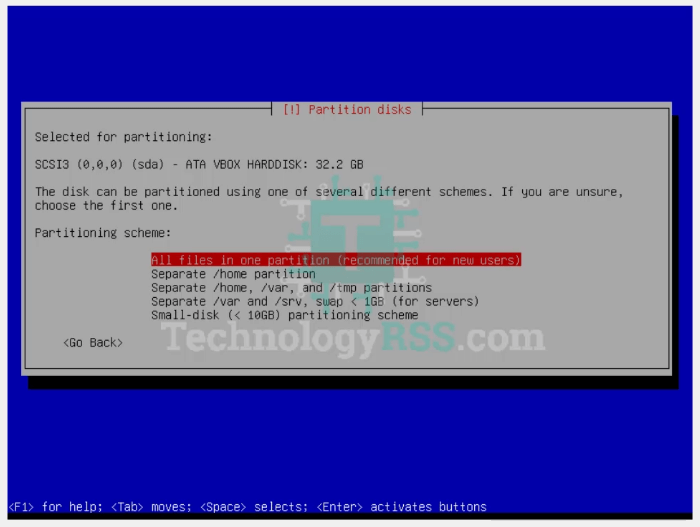
Select All files one partition then hit enter.
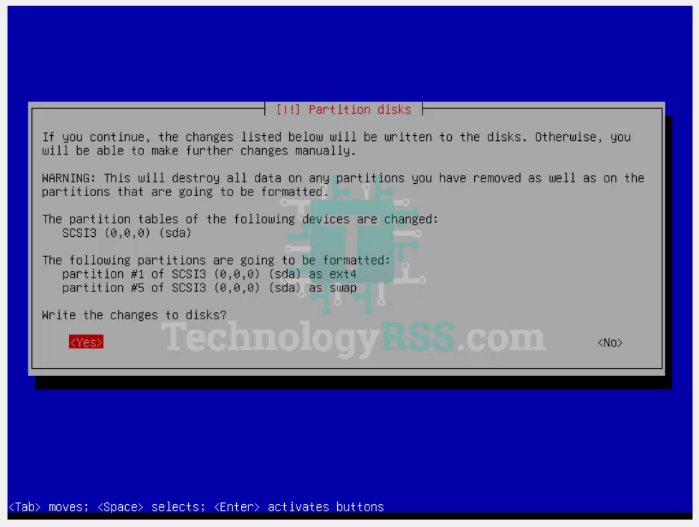
Select Write the changes to disks Yes. Then press enter.
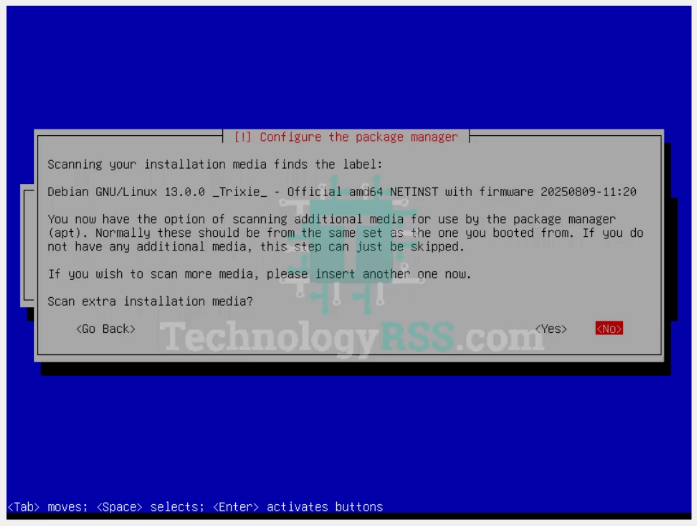
Scan extra installation media Select No, Then hit Enter.
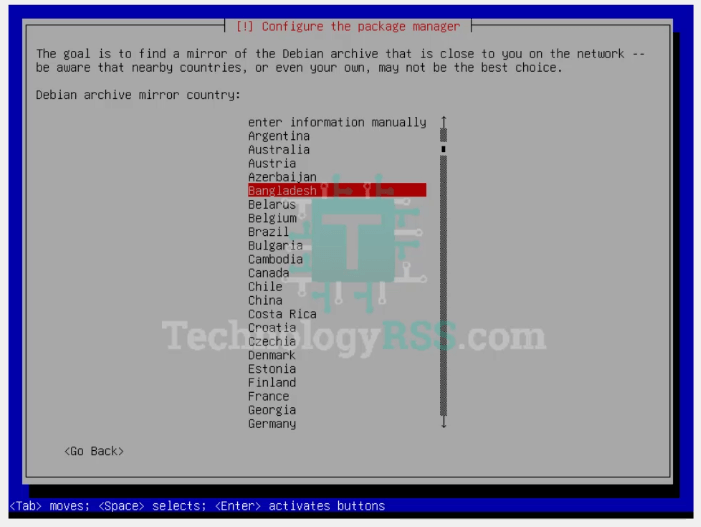
Select Debian archive mirror country as your choose.
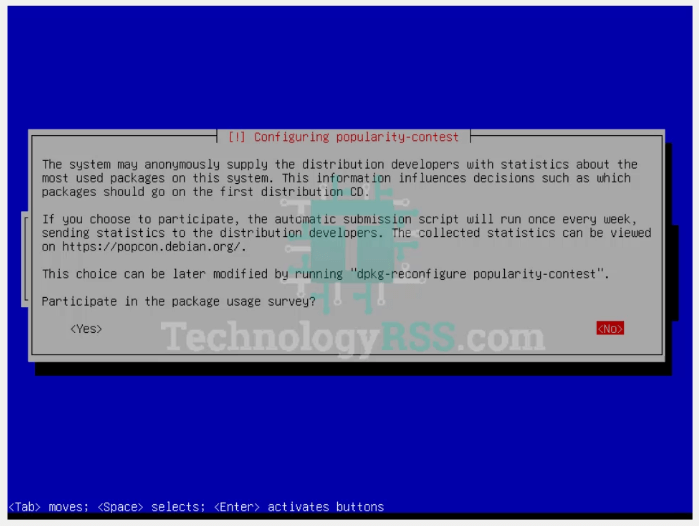
Participate in the package usage survey? Select No. Then hit Enter.
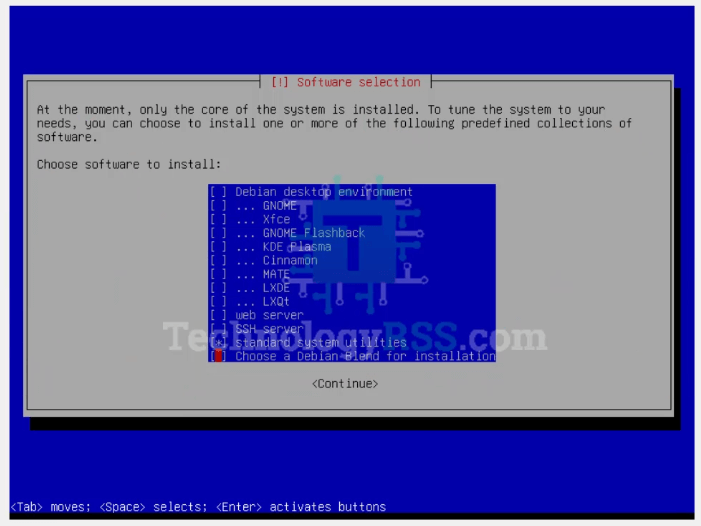
Choose software to install, I am using only server mode, so you use Debian desktop environment from select option. Then click Continue.
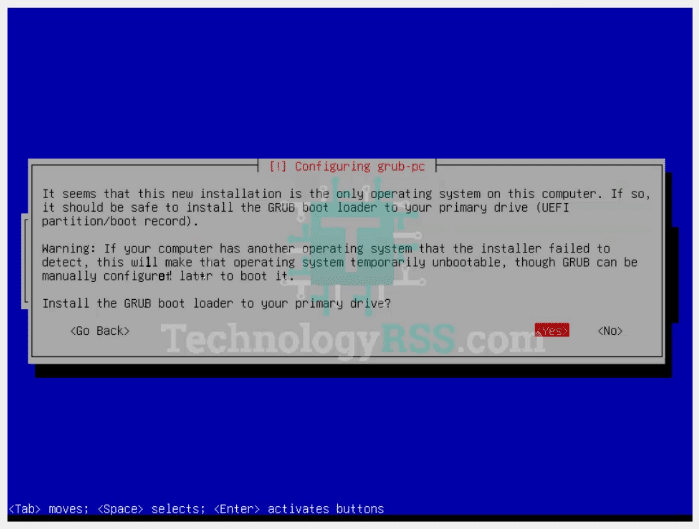
Install the GRUB boot loader to your primary driver, Select Yes, Then press Enter.
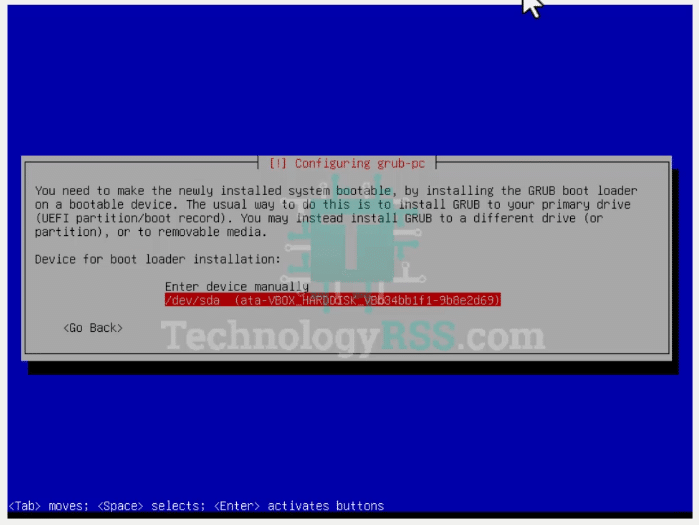
Device for boot loader installation, Select as your disk or Enter device manually.
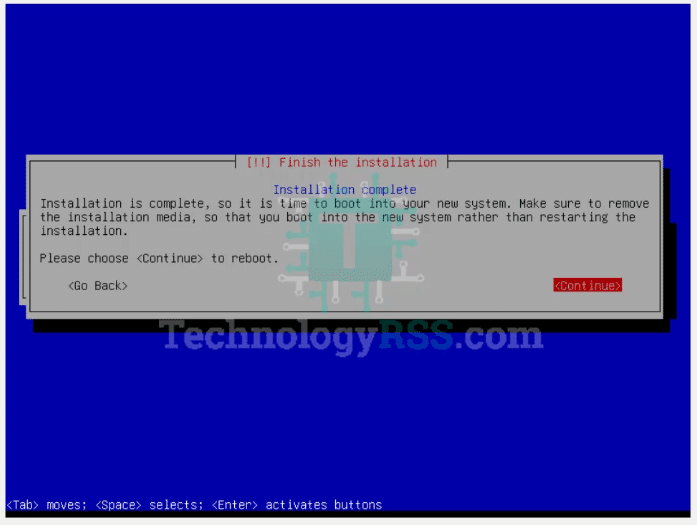
After installation done then remove iso from virtualbox then reboot this vm.
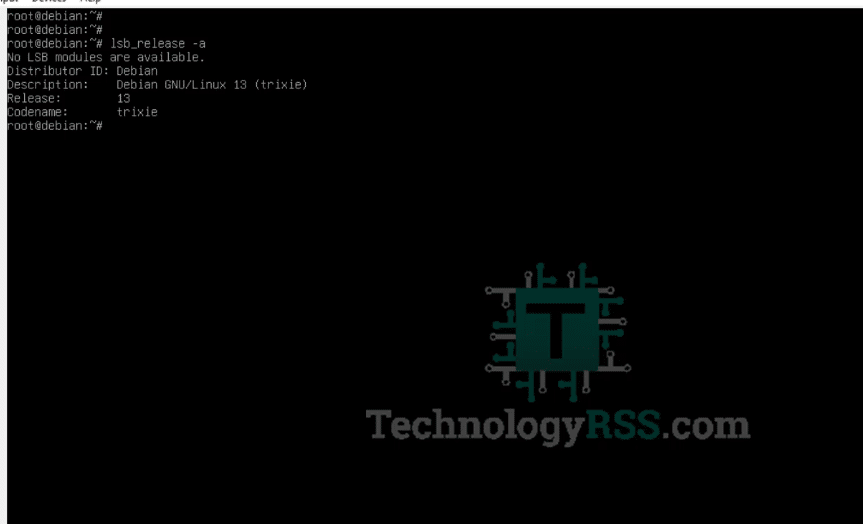
Login using root and password. then check server version using lsb_release -a command. then see it Debian 13 installation done. 🙂
If you see any error so please see my video from YouTube Channel.

Thanks to all.
- How To Configure Static IP address Debian 13 Server - September 20, 2026
- How To Install Zabbix 8.0 on Debian 13 - September 19, 2026
- How To Enable SSH On Debian 13 Server - September 13, 2025